
Many administrators prefer to manage Windows updates manually, in the interest of system uptime and security. It is possible to disable Windows Updates in Windows Server 2016, including disabling of automatic reboots. Please note, Windows Update is designed to keep Windows safe, and we recommend keeping Windows Update enabled at all times.
Log in to your Windows Server or VPS.
Open PowerShell from the taskbar. If you don’t see it, open Start > Run and type “PowerShell.exe”
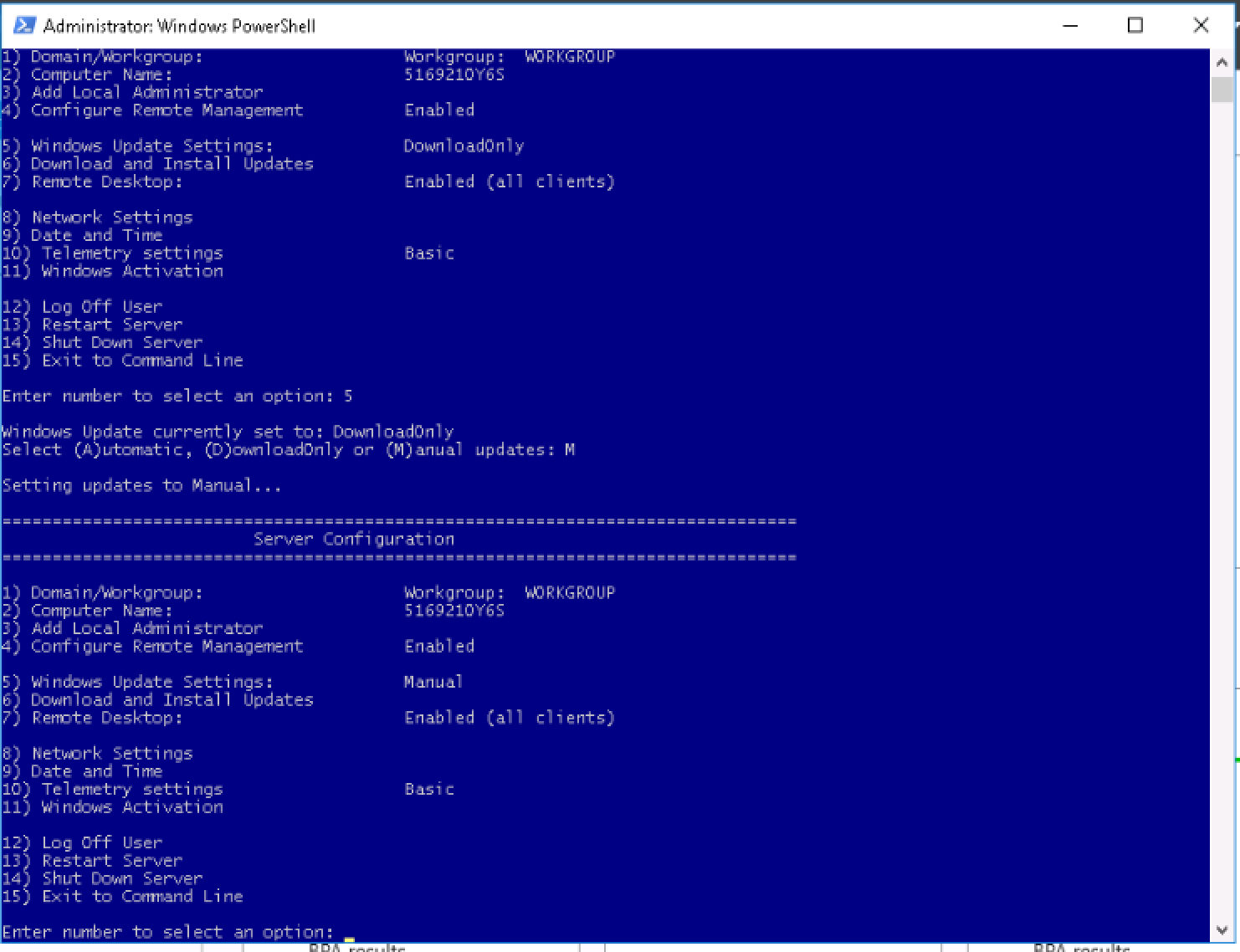
In PowerShell, run the command sconfig
Enter 5, press Enter
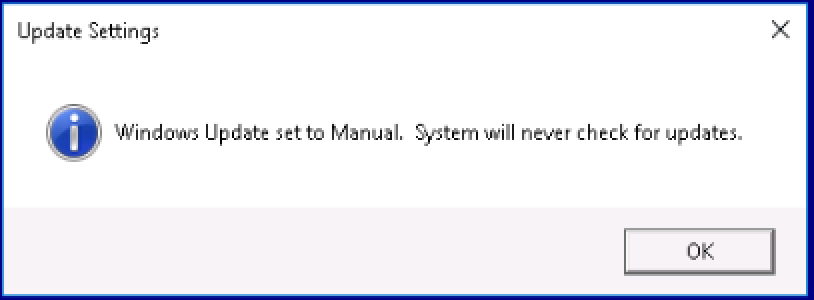
Enter M, press Enter (Manual updates only)
That’s it! Automatic updates are now disabled on Windows Server 2016.
This guide applies to:
Lightning-fast VPS hosting with enterprise SSD storage, global data centers, and 99.99% uptime. Built for developers, trusted by enterprises.
support@solvps.com
1-888-256-8213
These cookies are essential for the website to function and cannot be switched off.
These cookies enable enhanced functionality and personalization, such as live chat or video.
These cookies help us understand how visitors interact with the website (for example Google Analytics).
These cookies are used to deliver and measure advertising (for example Meta Pixel, LinkedIn Insight, Google Ads).