
Connecting to a remote Windows server or Windows VPS from your Windows 7 PC is easy with Microsoft’s own Remote Desktop Connection (RDC) program. It is included with most versions of Windows.
1. To launch RDC, open the Start menu of your computer and search for “Remote Desktop Connection“. (If you can’t find it, run Start > Run > mstsc.exe). Enter your VPS or remote Windows Server details as follows:
2. In the “Computer” field, enter your server’s public IP address. This address can be found by selecting your service from the Dashboard in the Secure Client Panel.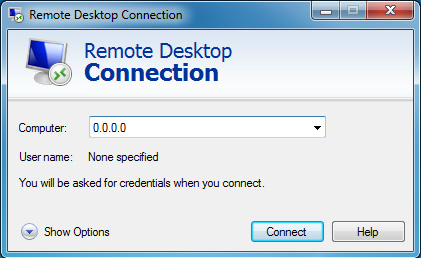
Click Connect.
You may see a message like the following. This happens because the security certificate used by your VPS is self-generated and self-signed. It’s OK to connect because you know it’s your own server, so feel free to select “Don’t ask me again.”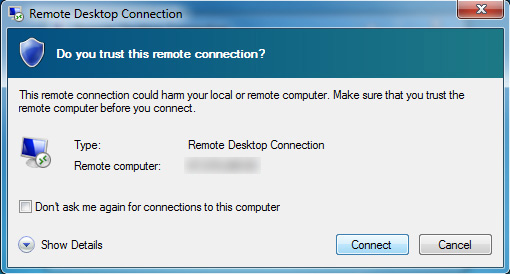
Click Connect.
3. RDC will prompt you for the remote system’s username and password (if the server is offline or inaccessible, you will receive an error message).
You can find the username and password in the Secure Client Panel by selecting your Windows VPS from the Dashboard.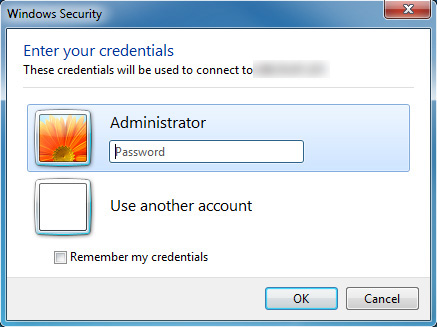
Click OK.
You should now be connected to your server’s desktop.
Lightning-fast VPS hosting with enterprise SSD storage, global data centers, and 99.99% uptime. Built for developers, trusted by enterprises.
support@solvps.com
1-888-256-8213
These cookies are essential for the website to function and cannot be switched off.
These cookies enable enhanced functionality and personalization, such as live chat or video.
These cookies help us understand how visitors interact with the website (for example Google Analytics).
These cookies are used to deliver and measure advertising (for example Meta Pixel, LinkedIn Insight, Google Ads).