
In most cases we suggest using Microsoft RDC on OS X to connect to a Windows server. Occasionally there are compatibility issues with OS X, so if you need to use an alternative RDP client on your Mac, we suggest downloading one of these free programs:
We will demonstrate connecting with CoRD, a popular alternative for OS X, and a very good all-around RDP client.
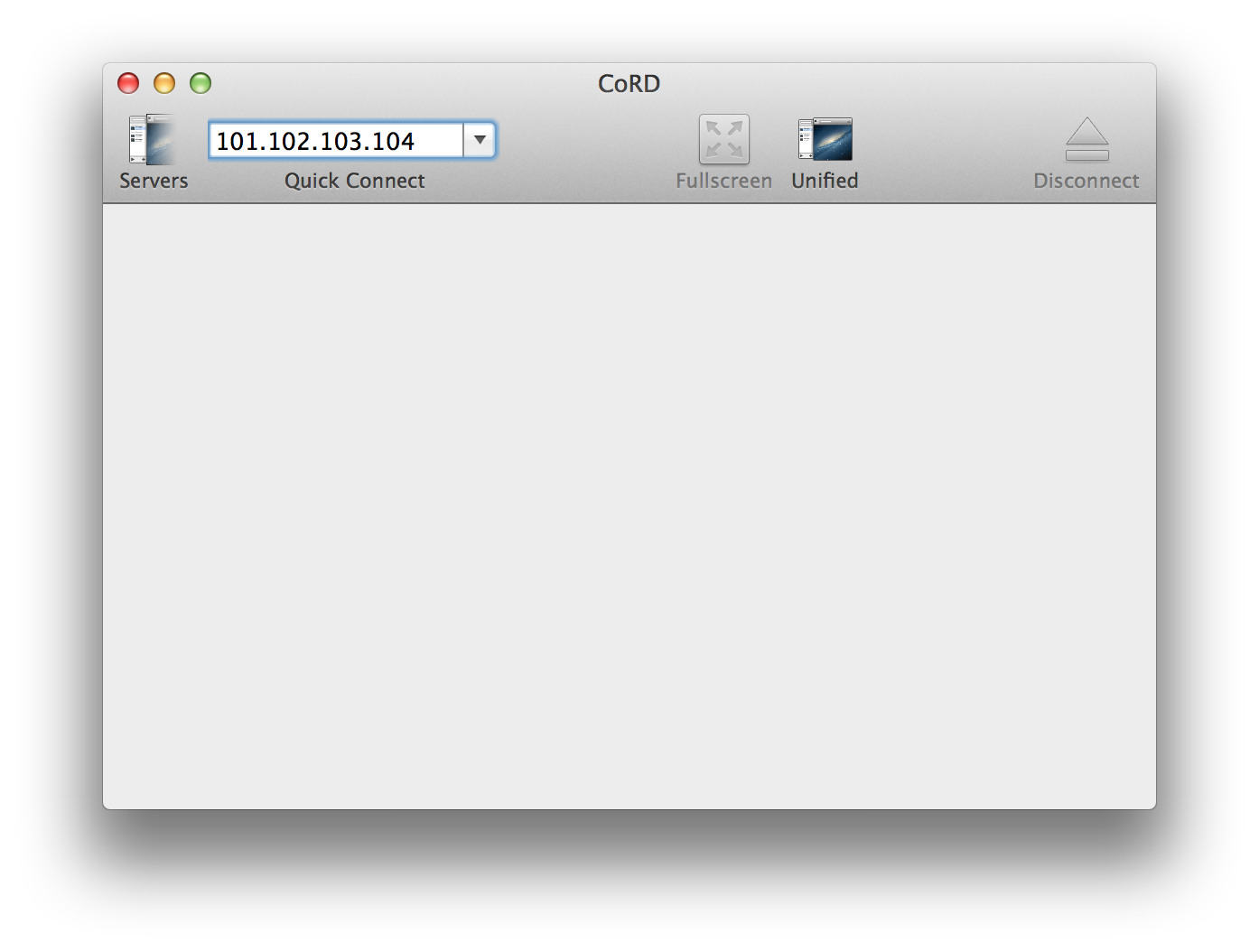
1. Download and open CoRD. In the “Quick Connect” box, enter your remote Windows server’s public IP address. This address can be found in your service setup email titled “New Server Information,” or in the Secure Client Area. Press Enter.
2. The remote desktop should appear in a new window, prompting for the Windows username and password. In most cases the username is “Administrator.”
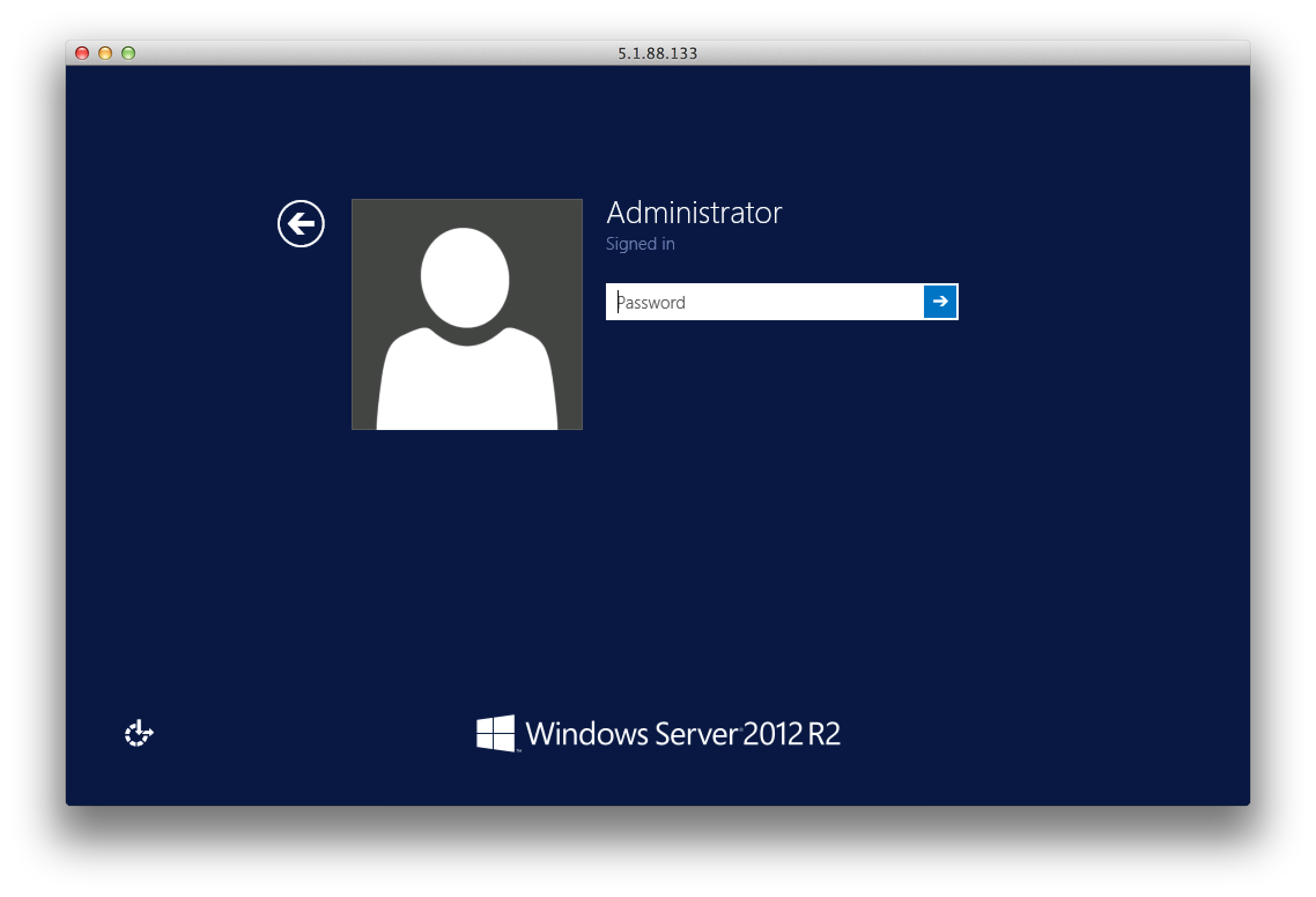
That’s it! You are now connected to the Windows server via RDP, and you can control it exactly like a ‘normal’ Windows PC.
If you experience any trouble with this process, or would like assistance connecting to a Windows server or Windows VPS, please don’t hesitate to contact our Technical Support team.
Lightning-fast VPS hosting with enterprise SSD storage, global data centers, and 99.99% uptime. Built for developers, trusted by enterprises.
support@solvps.com
1-888-256-8213
These cookies are essential for the website to function and cannot be switched off.
These cookies enable enhanced functionality and personalization, such as live chat or video.
These cookies help us understand how visitors interact with the website (for example Google Analytics).
These cookies are used to deliver and measure advertising (for example Meta Pixel, LinkedIn Insight, Google Ads).